


 Hatch Embroidery Digitizer
 Hatch Embroidery Composer
 Hatch Embroidery Personalizer
 Hatch Embroidery Organizer

















CorelDRAW GEM: Artwork Creation and Preparation
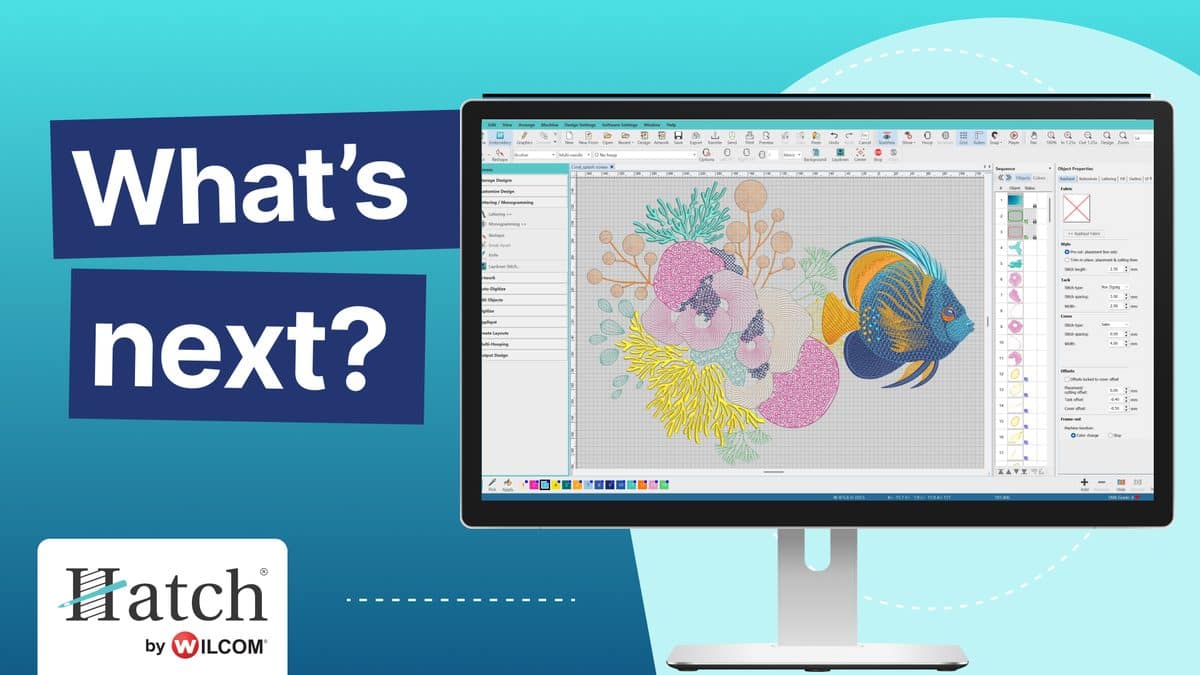
Great embroidery starts with great artwork. In this tutorial, Wilcom Chief Product Officer Brenden Prazner demonstrates how to use the CorelDRAW GEM with your Hatch Embroidery software to create and prepare artwork before you digitize.
Why artwork preparation matters
The cleaner your artwork going in, the better your embroidery coming out. Professional vector tools let you tidy shapes, simplify colors and fix problem areas before Hatch converts anything to stitches, whether you're digitizing manually or using auto-digitizing.
What the GEM adds
- Switch between vector design and embroidery in a single click
- Convert vector artwork and SVG files directly into stitches
- Trace bitmap images into clean vectors with PowerTRACE
- Edit photos with PHOTO-PAINT
- Import 70+ file formats and use 175 additional TrueType fonts
The Graphics Suite 2025 GEM works with Hatch Embroidery Digitizer 4. Learn more about the GEM, or explore all Hatch GEMs.
Learn it in Hatch Academy
Get to know the graphics tools you'll use for embroidery artwork in Hatch GEM: Getting Started, a 13-lesson course where each lesson builds on the last.
Ready to buy?
Compare the four levels to find the right fit, then choose your Hatch Embroidery software.
Where to get help
For technical questions about installation, licenses, or error messages, start with the FAQs or the Help Center. If you want to learn how to do something in the software, Hatch Academy is the place to go.
Related Articles



Categories
- Popular Posts
- Recent Posts