

 Hatch Embroidery Digitizer
 Hatch Embroidery Composer
 Hatch Embroidery Personalizer
 Hatch Embroidery Organizer













How to Select Objects, Resize, and Add Lettering
Objects are the building blocks of every embroidery design. Once you know how to select objects, change their size and add text, you can customize almost any design in Hatch Embroidery. This video shows you how, starting from the built-in shapes.
Shapes, fills and outlines
Create an object from the built-in shapes and adjust its height and width in a few different ways. Each object can be a fill or an outline, and switching between them takes just a couple of clicks. You can also try the built-in stitch types to see how each one changes the look of your design.
Bring it to life with lettering
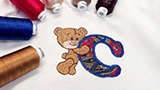
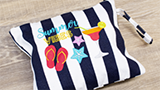
Use the Lettering docker to add words to your design, then experiment with shaped baselines and different embroidery fonts. Lettering is included in Hatch Personalizer, Composer and Digitizer, with 130 embroidery fonts in Digitizer. See what's possible with lettering in Hatch.
Quick, editable monograms
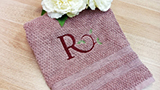
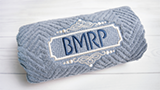
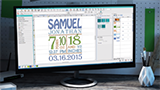
Monograms are fast to create and easy to change. If you embroider for customers at markets or events, a set of ready-made monogram styles lets people choose on the spot. Discover monogramming in Hatch.
Go further in Hatch Academy
- Design Basics & Lettering (Getting Started with Hatch 4, Part 2)
- Lettering and Monograms
- Hidden Lettering Features
- Creating Your Own Borders & Shapes
Ready to buy?
Compare the four levels to find the right fit, then choose your Hatch Embroidery software.
Where to get help
For technical questions about installation, licenses, or error messages, start with the FAQs or the Help Center. If you want to learn how to do something in the software, Hatch Academy is the place to go.
Related Articles
Categories
- Popular Posts
- Recent Posts